"Read through all of these materials, pull out the key points, and put them into report form." If you were asking a person, that one sentence would be enough to get the job done.
And yet, tools that work by answering a question back to you could not be asked this way. The steps in between end up missing.
Claude Cowork is a feature built with the purpose of handing off those in-between steps as well.
This article first walks through, step by step, what the feature actually does, and then covers how it works and how to use it safely.
What this article covers
- What Claude Cowork actually does
- How it differs from regular chat and from Claude Code
- Where processing happens and where files are placed
- The three approval modes, and how to draw boundaries to avoid risk
- How to write a request, and how to check the deliverables you receive
1. The Basics of Claude Cowork
This chapter is for people encountering this feature for the first time. It avoids technical terms where possible, and starts by explaining how the way you make requests changes.
The way you make requests changes
In a regular chat, you type a question and get an answer back.
For example, if you paste in a piece of text and write "please summarize this," a summary comes back. The work here is a single response to a single input.
With Claude Cowork, you state the result you want completed. Claude works out the steps needed to get there and carries them forward.
First, here is the flow in its simplest form.
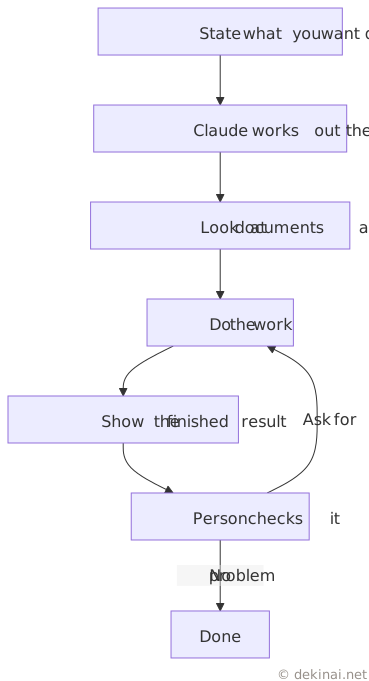
The key point is that the parts that go back and forth repeatedly no longer need a person to give instructions one step at a time.
Anthropic describes Cowork as a feature that lets you state the result, step away, and come back later to pick up the finished work.
How it differs from regular chat
Here is a comparison of the same request made to regular chat versus to Cowork.
| Item | Regular chat | Claude Cowork |
|---|---|---|
| What you convey | A question or instruction | The desired result and conditions |
| Who decides the steps | The user | Claude; the user reviews the plan |
| How it proceeds | One response per input | Steps continue until the goal is reached |
| What it works with | Content pasted into the conversation or attached files | Folders you've allowed a connection to, external services, on-screen apps |
| What you receive | A written answer | Files such as documents, spreadsheets, and materials |
| The user's role | Giving instructions and checking results | Presenting the goal, deciding on permissions, checking the deliverable |
This doesn't mean you can use what Cowork produces as-is. For documents containing figures or dates, and for text going out externally, a person needs to check the content. This point is taken up again in Chapter 5.
What kind of work can you hand off
Here are some concrete examples. What they have in common is that each involves multiple steps.
Reading and organizing materials
Say you have five sets of meeting minutes, three product description documents, and one inquiry record.
You can hand all of these over at once and have them organized into three categories: what has been decided, what has not been decided, and what work is needed and from whom. Done by a person, this means opening and reading nine files in sequence and cross-checking the contents against each other.
Building a spreadsheet
You can hand over a list of figures and have a summary table built from them. According to Anthropic, Cowork can produce a spreadsheet file with formulas already in place — not a table of plain values, but one that recalculates when you swap in new numbers later.
Surveying the state of files
It can look through the inside of a folder, sort files by type, or list out files whose name doesn't match their content.
Running on a schedule
Anthropic states that Cowork tasks can be run on a recurring basis — for example, compiling a report in a set format on the same day every week.
Permission is requested along the way
Cowork carries out operations that have real effects — reading files, viewing web pages, operating apps. Because of this, there is a mechanism that asks the user for permission before it acts.
Here is the flow, broken down by participant.
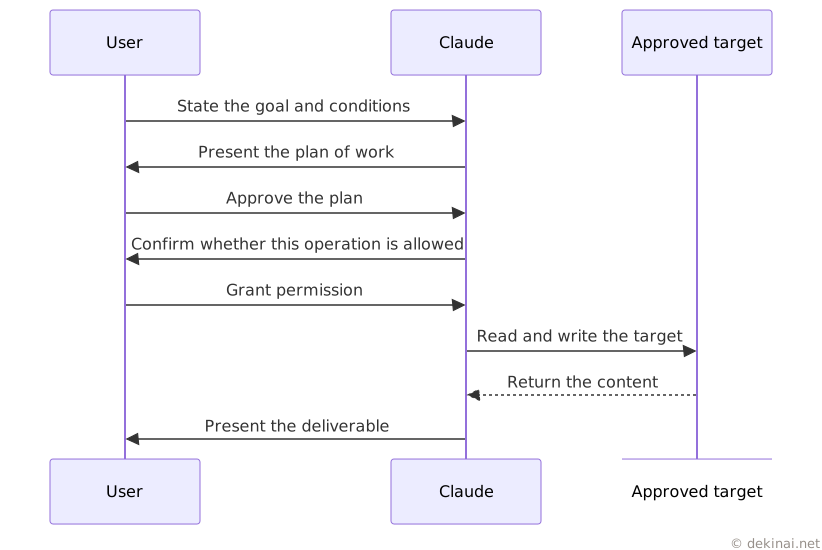
The first time you use it, don't skip this confirmation. What Claude is about to act on is shown on the confirmation screen.
That covers the basics. From the next chapter on, the explanation moves to how the system works.
2. Relationship to Claude Code
The shared idea
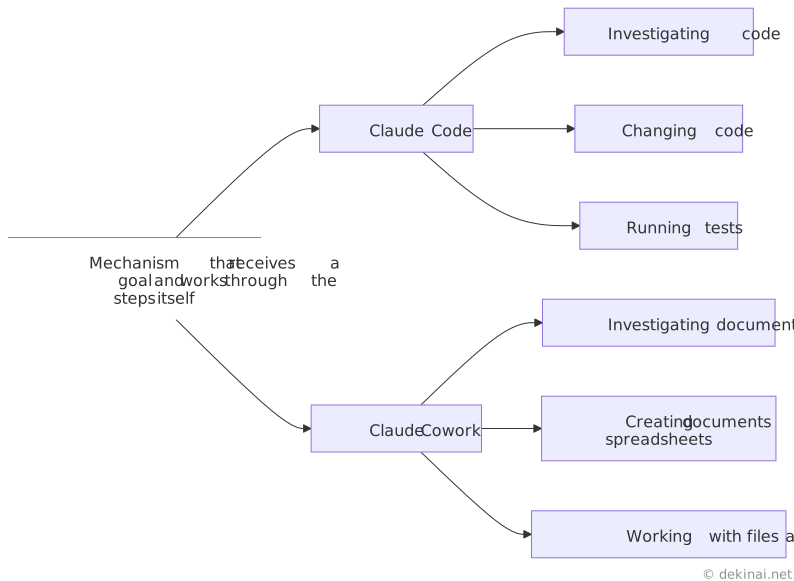
Claude Code is a feature built for software development. Tell it a goal, and it examines the relevant files, changes the code, and runs tests as needed.
According to Anthropic, Claude Cowork extends the mechanism used in Claude Code — working through multiple steps on its own — to knowledge work outside of development. You don't need to operate a terminal to use Cowork.
Differences in scope and tools
| Item | Claude Code | Claude Cowork |
|---|---|---|
| Primary scope | Source code and the development environment | Documents, materials, spreadsheets, research |
| Primary operations | Editing files, running commands, testing | Reading/writing files, browsing the web, operating apps, creating deliverables |
| Typical requests | Adding features, fixing bugs, writing tests | Writing reports, organizing materials, documenting research findings |
| Knowledge required of the user | Knowledge of the dev environment and code | Ability to put the goal and success criteria into words |
| Entry point | Terminal or editor | The input field in the Claude app |
Neither of these two is superior to the other — they simply target different kinds of work.
External services it can connect to
Anthropic's product page lists Microsoft 365, Google Drive, Slack, and Amplitude as connection targets.
In other words, it can work with not just local files but also information held in the storage locations and communication tools used for business. This breadth is what leads into the discussion of permissions in the chapters that follow.
3. Where It Runs and How Data Flows
Two execution modes
According to Anthropic's architecture documentation, a Cowork session runs under one of two execution modes.
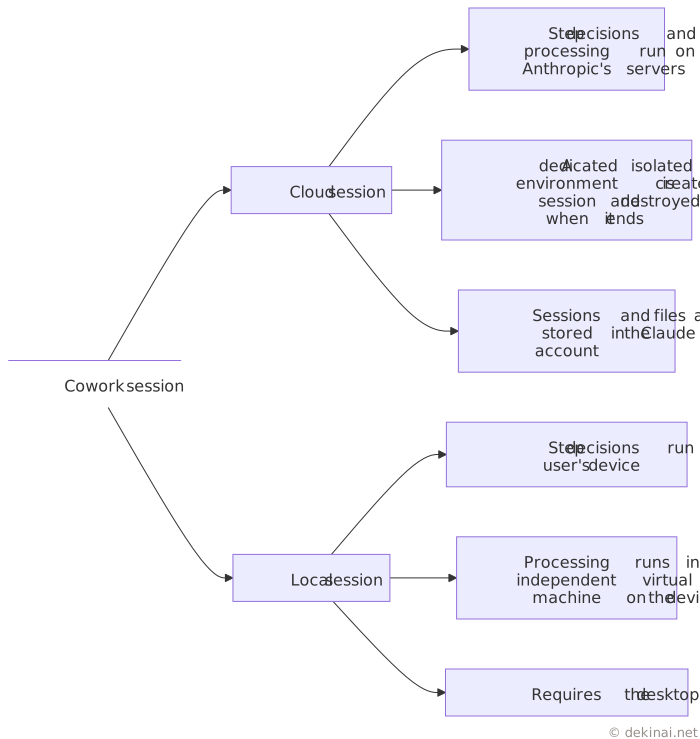
The cloud session is the default mode, and Anthropic treats it as a beta offering.
Isolation in cloud sessions
Anthropic lists the following properties for cloud sessions.
- A dedicated isolated environment is created for each session and destroyed when it ends.
- No state is shared between isolated environments, or between organizations.
- The isolated environment cannot reach private internal addresses or addresses holding cloud management information.
- All communication leaving the isolated environment must pass through a relay point whose configuration cannot be changed from the isolated environment side.
- Credentials used for authentication are dedicated to that session and expire within a few hours.
- Stored records are partitioned by organization and account.
Operations that touch files or apps on the local device are carried out only through the desktop app, and each request is checked against the user's permission settings.
The structure of local sessions
In a local session running on the desktop, the decision-making for the steps themselves runs on the user's device.
Execution of the processing takes place inside a dedicated virtual machine separated from the device's operating system. This virtual machine is subject to restrictions on outbound communication, restrictions on system calls, and per-session user isolation.
What you can do differs by screen
Cowork is available on the Pro, Max, Team, and Enterprise plans. However, what you can do changes depending on which screen you're using it from.
| Screen | Main scope |
|---|---|
| Desktop app | All functionality: viewing in-progress deliverables, reading/writing local files, operating the browser, operating the screen |
| Web version | Starting work, checking progress, using connections and skill collections, checking scheduled runs |
| Mobile version | Same scope as the web version |
| Claude in Chrome side panel | Can start Cowork without any prior selection |
The following operations require the desktop app to be running on the device.
- Reading and writing files inside a connected folder.
- Using device-side connections and extensions.
- Operating the browser via Claude in Chrome.
- Operating apps on screen.
The web and mobile versions are offered as a beta on Pro, Max, and Team. On Enterprise, they're available if an administrator has enabled them. The Claude in Chrome side panel is available on Max and Team, and is being rolled out to Pro.
Sessions carry across devices
Cloud sessions are tied to the account and carry across devices. The same session and files are visible from the desktop, web, and mobile versions. Work started on one device can be checked on another.
That said, reading and writing local files only works while the desktop app is open on the device where those files live. When continuing work from the mobile version while out and about, whether it can touch files on your home or office device depends on the state of that device.
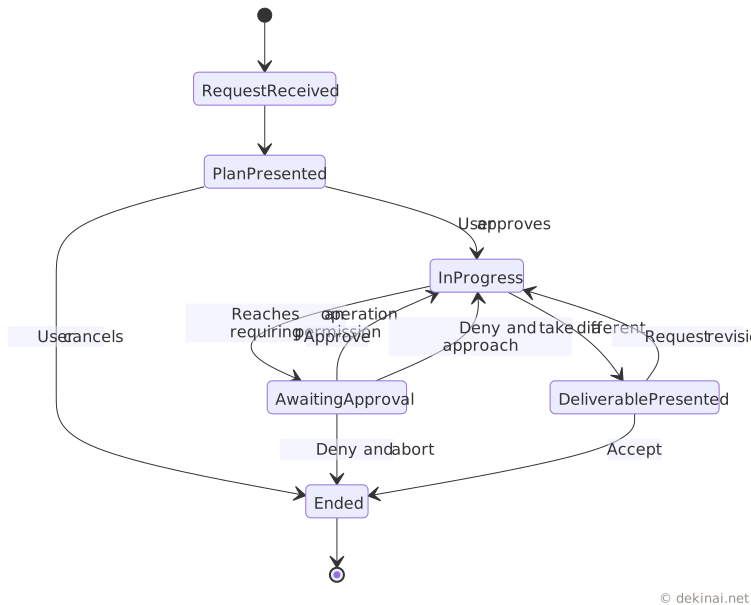
Here is the session state shown as a set of transitions.
4. Permissions and Where to Draw the Line
Three approval modes
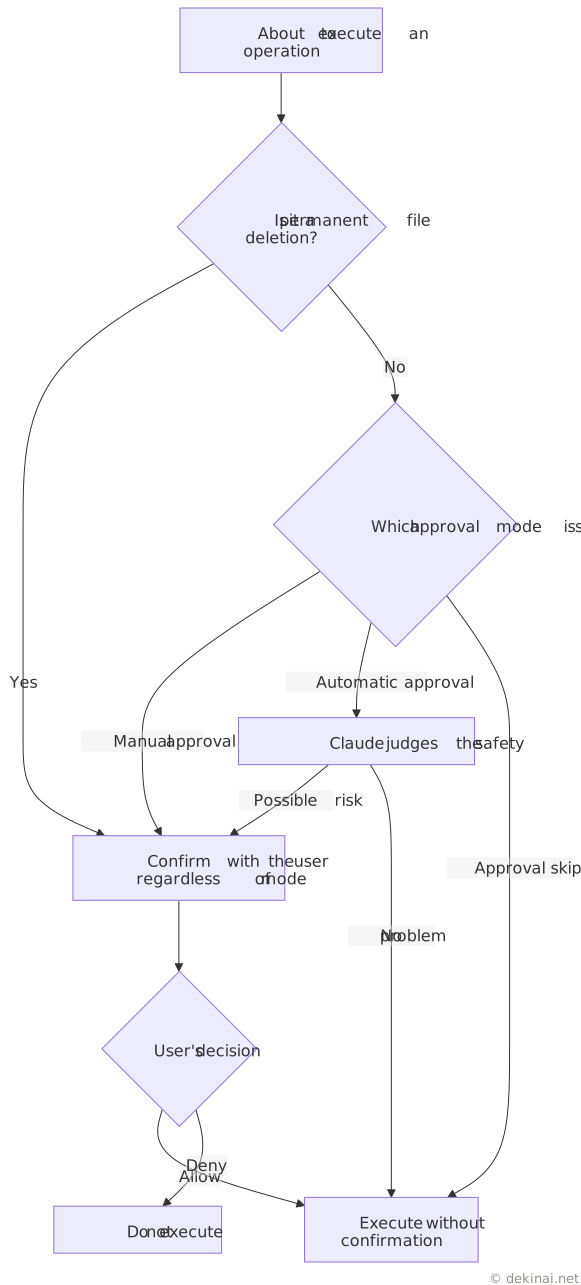
Anthropic's safety guidance describes three modes for approving operations.
- Approve manually. Requires user confirmation for every operation.
- Approve automatically. Claude judges the safety of an operation before executing it.
- Skip approval. No confirmation of operations is performed. This is the setting with the greatest risk.
Regardless of the mode, confirmation is always required before a file is permanently deleted.
Here is the decision flow.
Instructions hidden inside external text
The main risk Anthropic points to is when external content that Claude reads has a malicious instruction embedded within it. In English this is called prompt injection.
The pattern is this: while reading materials or a web page in order to fulfill a request, a sentence written inside that content tries to behave as if it were an instruction from the user.
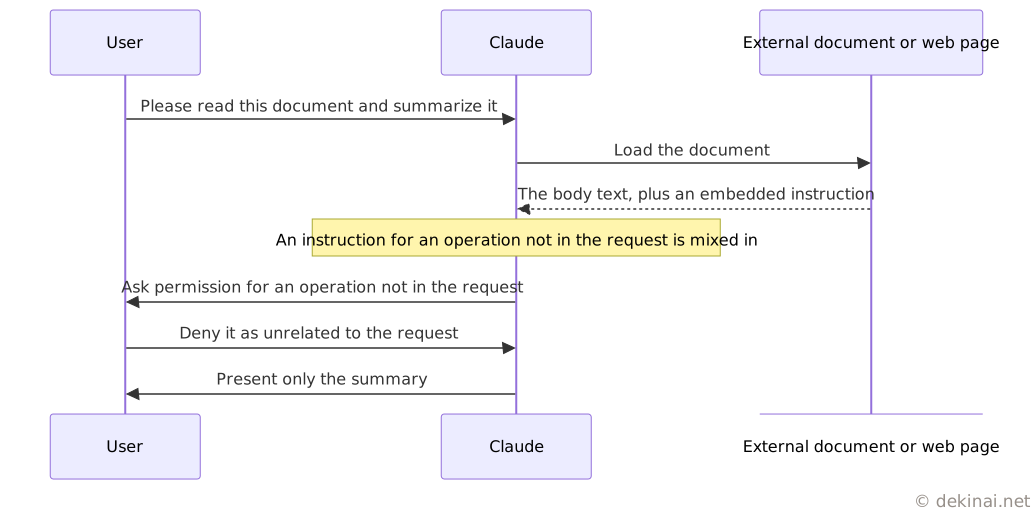
Because this pattern exists, it's worth checking whether the operation shown on the approval screen actually corresponds to your own request. If you don't know where the material you're having it read comes from, don't set approval to be skipped.
Anthropic also lists the following as risks.
- Unintended deletion of files.
- Exposure of information that requires careful handling.
- Passing information between apps that haven't been authorized to exchange it.
Decide the scope of connections in advance
Anthropic's guidance recommends creating a folder dedicated to the task and connecting only that, rather than broadly allowing a connection to an entire set of files.
The things listed as ones to avoid connecting are financial documents, credentials, and personal records.
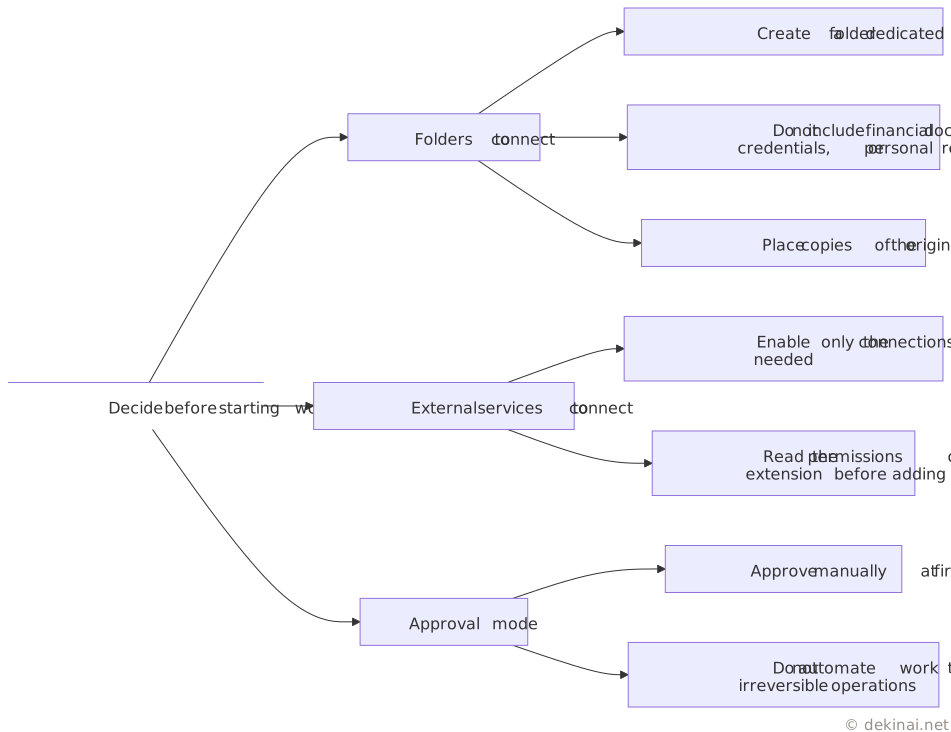
The same thinking applies to browser operation. Guidance advises being deliberate about which sites you let it work on through Claude in Chrome, especially sites where you're already authenticated as a user. It's recommended that medical, financial, and dating apps be excluded from on-screen operation.
What to watch during and after the work
During the work, watch for the following.
- Is it trying to open a file that wasn't part of the request?
- Is it trying to connect to a site that wasn't part of the request?
- Is the scope of the work expanding beyond what was asked?
If you notice suspicious behavior, stop the work on the spot.
After the work, check the output regularly — including for tasks running on a schedule. Anthropic states that responsibility for the operations Claude performs rests with the user.
5. Designing the Request and Checking the Deliverable
Four elements to include in a request
To make the result easy to check, write out the following four elements separately.
- Purpose. What you want completed.
- Scope. Which files, materials, or connections to use.
- Constraints. What must not be done.
- Output. What format you want to receive it in.
The constraints section lightens the burden of approval decisions. Any constraint you don't write down ends up being judged one operation at a time on the approval screen instead.
The output section determines how much work checking takes. Specifying the order of items, and what to attach to each one, lets whoever receives it quickly find the places to cross-check against the source material.
Three examples follow. Each shows only the request text, not a sample deliverable, since the output changes depending on the work.
Example 1: Reading materials and organizing the issues
Purpose:
Create an internal-sharing summary table based on the meeting materials in the connected folder.

Scope:
- Meeting minutes
- Product description materials
- Inquiry records

Constraints:
- Do not state anything as fact that is not written in the materials
- Where materials conflict with each other, list both versions
- Mark points that require judgment as "needs confirmation"
- Do not modify the original files
- Do not send anything externally

Output:
- One file in Markdown format
- Heading order: Overview, Decisions, Open Items, Assigned Work, List of Referenced Files
- Attach the source file name to each item
What matters in this request is the last two lines.
Having Claude flag things as "needs confirmation" surfaces the spots where it was unsure, marking them as places a person should look. Without the flag, confident statements and uncertain ones appear identical.
Having it attach the source file name lets you trace just the statements you want to check back to the original material. Without this, a single questionable line would mean rereading every piece of material, which undermines the point of delegating the work.
Example 2: Surveying the state of files
Don't request work involving deletion or moving files in a single request. First, have it produce just a list.
Purpose:
Understand the state of the documents inside the connected folder.

Scope:
- The connected folder and every level beneath it

Constraints:
- Do not move, rename, or delete files
- Do not rewrite the contents
- Always attach the basis for each judgment

Output:
- Three Markdown tables
- The first: counts by file type
- The second: files whose name may not match their content
- The third: files that may be duplicates
The first and second lines of the constraints limit the scope of this request to reading only. As covered in Chapter 4, confirmation is required before a file is permanently deleted under any approval mode, but moving or renaming is not covered by that. Exclude those on the request side instead.
After a person checks the output tables, the next request can instruct moving or deleting. Splitting the process into two steps reduces the number of operations that would need to be undone.
Example 3: Building a spreadsheet
Purpose:
Create a monthly summary table from the sales list.

Scope:
- sales_details.csv in the connected folder

Constraints:
- Do not modify the original file; save as a new file
- Perform the aggregation with formulas, not by writing in already-calculated values
- Do not add months that are not present in the source data

Output:
- One spreadsheet file
- Columns: Month, Count, Total Amount, Change from Previous Month
- Leave "Change from Previous Month" blank for the first month
The second constraint line determines whether the resulting table can have its figures swapped out later. A table with only plain values written in has to be rebuilt whenever the source data changes.
When checking the table you receive, verify the following two points.
- Does the range covered by the aggregation match the row count of the source data?
- Do the period boundaries align with the actual month boundaries?
The third constraint line is meant to prevent months that don't exist in the source data from appearing in the table. Filling in a missing month to make the period look continuous would make the summary table incorrect.
What to check after receiving the deliverable
Among the deliverable's contents, the following items need to be cross-checked against the source material.
- Figures.
- Dates.
- Proper names.
- Contractual terms.
- Explanations relating to laws or regulations.
- Text going out externally.
For parts that don't contain these, it's enough to check the structure and whether anything is missing.
The order of checking is: first see whether the output format matches what the request specified, then cross-check the items above against the source material. If the format doesn't match what was specified, the request may have been interpreted differently than intended — review the request text before reading the content.
6. Summary
Claude Cowork is a feature that extends the mechanism used in Claude Code — building and carrying out steps from a stated goal — to knowledge work such as writing documents, organizing materials, research, and spreadsheets.
What the user conveys is the desired result and its conditions. Claude decides the steps in between, and asks for permission before any operation that has an effect.
By default, processing happens in an isolated environment on Anthropic's servers; on desktop, you can also choose to run it on the device itself. Operating local files, the browser, or the screen requires the desktop app to be running.
Three things are central to using it safely: deciding the scope of connections in advance, checking whether the operations shown on the approval screen correspond to your own request, and cross-checking figures and dates in the deliverable against the source material.
The first time you use it, start with easily-reversible work — surveying and listing things, drafting, presenting candidates without making changes. Splitting the work into two stages, with a person checking the result of the first stage before requesting the second, is the approach with the fewest failures.